How to Deploy a Status Page to Cloudflare Pages
Learn how to use statusas monitoring data to deploy a status page on Cloudflare Pages.
Problem
You need a fast, reliable, and automated status page, but you don't want to manage the hosting infrastructure. Manually updating a status page during an incident is inefficient and error-prone.
Solution
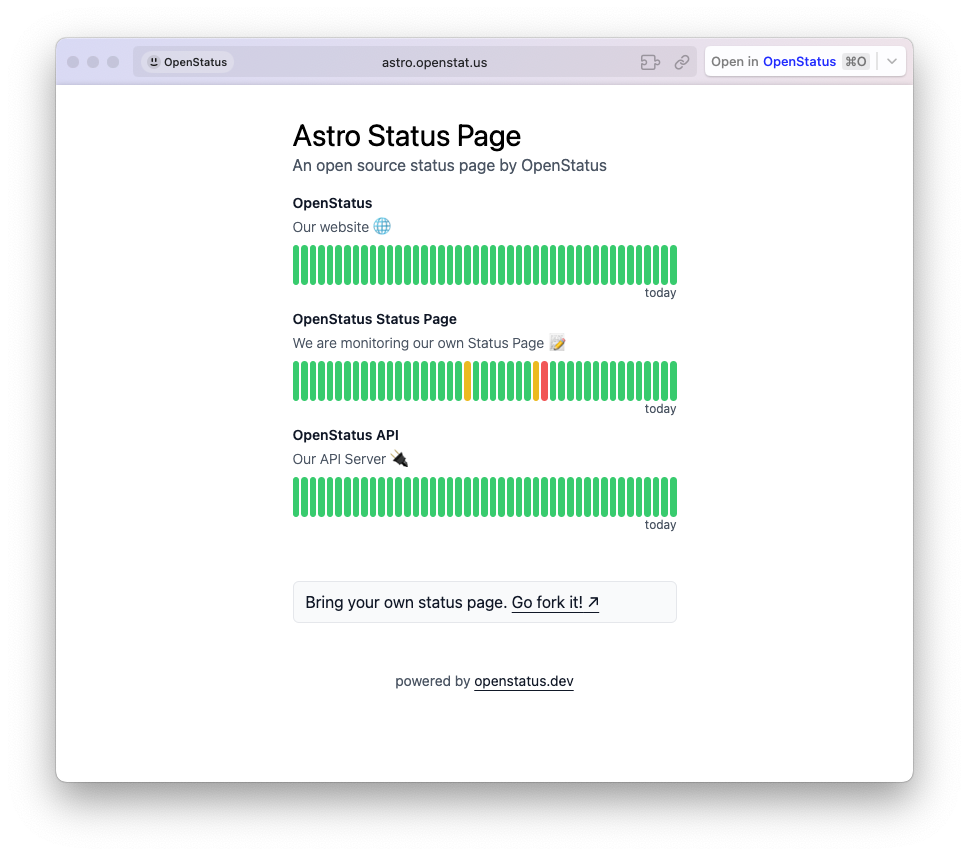
Deploy a custom status page to Cloudflare's global edge network using statusas as the data source. This guide shows you how to use our Astro-based template to create a status page that automatically reflects your monitoring data.
The code for the template is available on GitHub.
Prerequisites
- A Cloudflare account
- An statusas account with at least one monitor configured.
Step-by-step guide
1. Get your statusas API key
First, you need an API key to fetch your monitoring data.
- Navigate to your statusas dashboard.
- Go to Settings > General and find the API Keys card.
- Click Create and copy the key.
2. Set up the Astro project
Clone our status page template and install the dependencies.
git clone https://github.com/statusas-lt/astro-status-page.git
cd astro-status-page
pnpm install
3. Customize the status page
You need to specify which monitors to display on your page.
- Open the
src/pages/index.astrofile. - Find the following line of code:
const monitorIds = [1] - Replace the
1with the ID of the monitor you want to display. You can find the monitor ID in the URL when you view a monitor in the statusas dashboard (/monitors/[ID]). You can also add multiple IDs:[1, 2, 5].
4. Configure your Cloudflare environment variable
Before deploying, you must provide your statusas API key to Cloudflare.
- Go to your Cloudflare dashboard and click on Workers & Pages.
- Select your site and go to the Settings tab.
- Navigate to Environment variables and add a new variable:
- Variable name —
API_KEY. - Value — paste your statusas API key here.
- Variable name —
5. Deploy to Cloudflare Pages
Now you can deploy your status page.
pnpm run pages:deployAfter the command completes, your status page will be live on Cloudflare Pages.